


Some photoshop instruction


Thread Starter
New Member
Joined: Apr 2003
Posts: 5,563
Likes: 0
From: Earth
 Some photoshop instruction
OK, I just recently got Photoshop CS. I watched an episode of ScreenSavers on Tech TV, where the guy changed the color of the girls shirt from blue to red by sampling the color and selecting the area he wanted to fill in with the colors. It was amazing because it used all the different shades of colors and accounted for shadows etc.
Unfortunately, I didn't have Photoshop at the time and now I've forgotten how he did it.
How in the heck do I do that. Including the outlining of the area, sampling the colors and replacing with said colors.
Unfortunately, I didn't have Photoshop at the time and now I've forgotten how he did it.
How in the heck do I do that. Including the outlining of the area, sampling the colors and replacing with said colors.

Theres a few ways to change colors. If he sampled the color, I think he is using the replace color method.
Open your photo, then go to Image->Adjustments->Replace Color...
You should have a prompt like this...use the eyedropper to sample the color you wish to replace.
Open your photo, then go to Image->Adjustments->Replace Color...
You should have a prompt like this...use the eyedropper to sample the color you wish to replace.
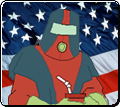
Use the slides to begin changing the color. You may notice not all the reds are being changed. In that case use the eyedropper with the + sign next to it. This includes whatever other colors you click in the sampling.
And there you have it, a blue face watch.
And there you have it, a blue face watch.
Thread Starter
New Member
Joined: Apr 2003
Posts: 5,563
Likes: 0
From: Earth
OK, I've tried it that way before, but the way I saw him do it was he outlined an area he wanted to sample from so it basically grabbed all the colors within that area. This way will work too I guess, he just made it look a lot easier.

Trending Topics

Registered User
Joined: Aug 2003
Posts: 310
Likes: 0
From: Burnaby BC
select an area of color with a marquee tool.
Select "Select smiliar" (Which will use the same selection preferances as the want tool.)
or
"Select color range"
or
"Replace color"
There's a bunch of ways it could be done.
I believe select color range is what you saw done though.
Select "Select smiliar" (Which will use the same selection preferances as the want tool.)
or
"Select color range"
or
"Replace color"
There's a bunch of ways it could be done.
I believe select color range is what you saw done though.
It was something different. What was new was that you selected a large section of color with various gradients and it would automatically change the other color gradients and all. It's something new strictly to Photoshop CS, 7 didn't have it.

Thread
Thread Starter
Forum
Replies
Last Post
