


Masters of Photoshop: Please Chime In! =)


Thread Starter
Vendor - Former Vendor
iTrader: (3)
Joined: Jul 2006
Posts: 1,268
Likes: 0
From: LA/SD
 Masters of Photoshop: Please Chime In! =)
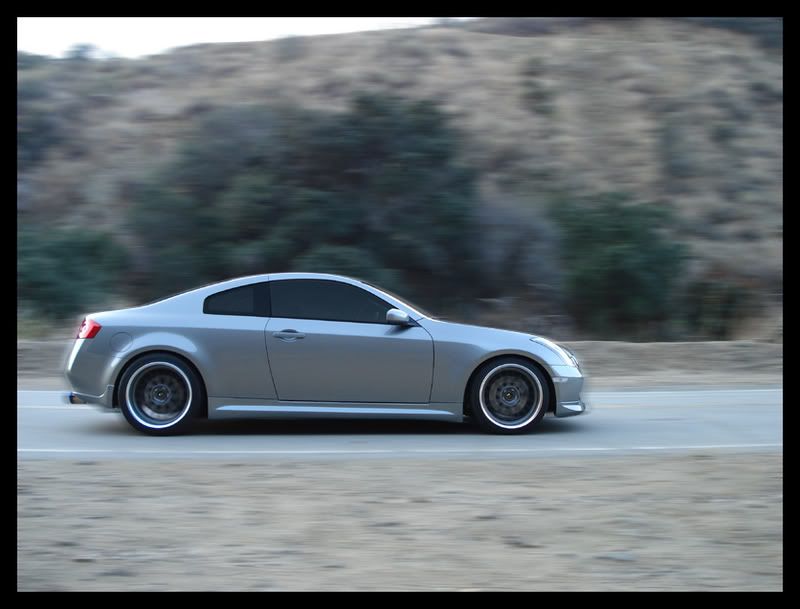
so as you can see, i'm trying to learn how to do motion shots with photoshop. any helpful tips would be appreciated!

Last edited by ahero4eternity; Jan 13, 2007 at 05:42 PM.



Trending Topics


Originally Posted by sabrefanpc
that is where i learn to photoshop cars and such.
Originally Posted by ahero4eternity

but there is no one in the car
and if you added a little bit of smoke it would look awesome.
im at a hotel right now in my laptop because i have no power at home and my computer with all my programs are at home.

Originally Posted by ahero4eternity
^^that pic was done for practice purposes only 
i'm not advanced enough to make that one more realistic yet...lol
so who wants to add smoke?
i'm not advanced enough to make that one more realistic yet...lol
so who wants to add smoke?
oh also on Digimods Tutorials.
go under Burnout... if you wanna give it a try for yourself.
Last edited by AlexBG; Jan 13, 2007 at 10:41 PM.

Thread Starter
Vendor - Former Vendor
iTrader: (3)
Joined: Jul 2006
Posts: 1,268
Likes: 0
From: LA/SD
Originally Posted by josephchihweilu
nice shots calvin.
btw, could you get some info on those high-flow cats for me again?
btw, could you get some info on those high-flow cats for me again?

Originally Posted by ahero4eternity
so as you can see, i'm trying to learn how to do motion shots with photoshop. any helpful tips would be appreciated!
2. Create an object of you car with the mask.
3. Working on the background layer, use the motion blur effect, and choose the direction of the blur.
4. Feather the edges of the car object.
5. Flatten.
6. Save as JPEG.
You might want to save the file after you make an object of your car, so you can try and play with other blur, color, 3d effects.


Originally Posted by ctwentytwo
1. Mask you car to isolate it from the background.
2. Create an object of you car with the mask.
3. Working on the background layer, use the motion blur effect, and choose the direction of the blur.
4. Feather the edges of the car object.
5. Flatten.
6. Save as JPEG.
You might want to save the file after you make an object of your car, so you can try and play with other blur, color, 3d effects.
2. Create an object of you car with the mask.
3. Working on the background layer, use the motion blur effect, and choose the direction of the blur.
4. Feather the edges of the car object.
5. Flatten.
6. Save as JPEG.
You might want to save the file after you make an object of your car, so you can try and play with other blur, color, 3d effects.

Excellent example above!
Here's another. OP, what you need to remember is that good actual 'in motion' shots do NOT blur the actual moving object. Think about it; if the camera is moving at the same speed as the car, both will be stationary to each other. What will be in motion is the background and of course the wheels and those are enough to show the viewer that the object is in motion.
Original:

Photoshopped:

Here's another. OP, what you need to remember is that good actual 'in motion' shots do NOT blur the actual moving object. Think about it; if the camera is moving at the same speed as the car, both will be stationary to each other. What will be in motion is the background and of course the wheels and those are enough to show the viewer that the object is in motion.
Original:
Photoshopped:

